Free caption templates for Premiere Pro
Looking for free caption templates for Premiere Pro? Most of what you'll find are MOGRT text templates. They look nice, but you still type and time every caption yourself.
This guide explains the three kinds of free caption templates, which one saves the most time, and how to use 18 free animated presets in Premiere Pro.
In short
- MOGRT text templates: free and pretty, but one clip per caption, filled in by hand.
- Premiere Track Styles: free and quick, but static. No word highlight or animation.
- Caption presets in a plugin: style and time every word of the transcript in one click.
- Captions Gen has 18 free animated presets, with no time limit and no watermark (Windows).
The three kinds of caption templates
1. MOGRT text templates
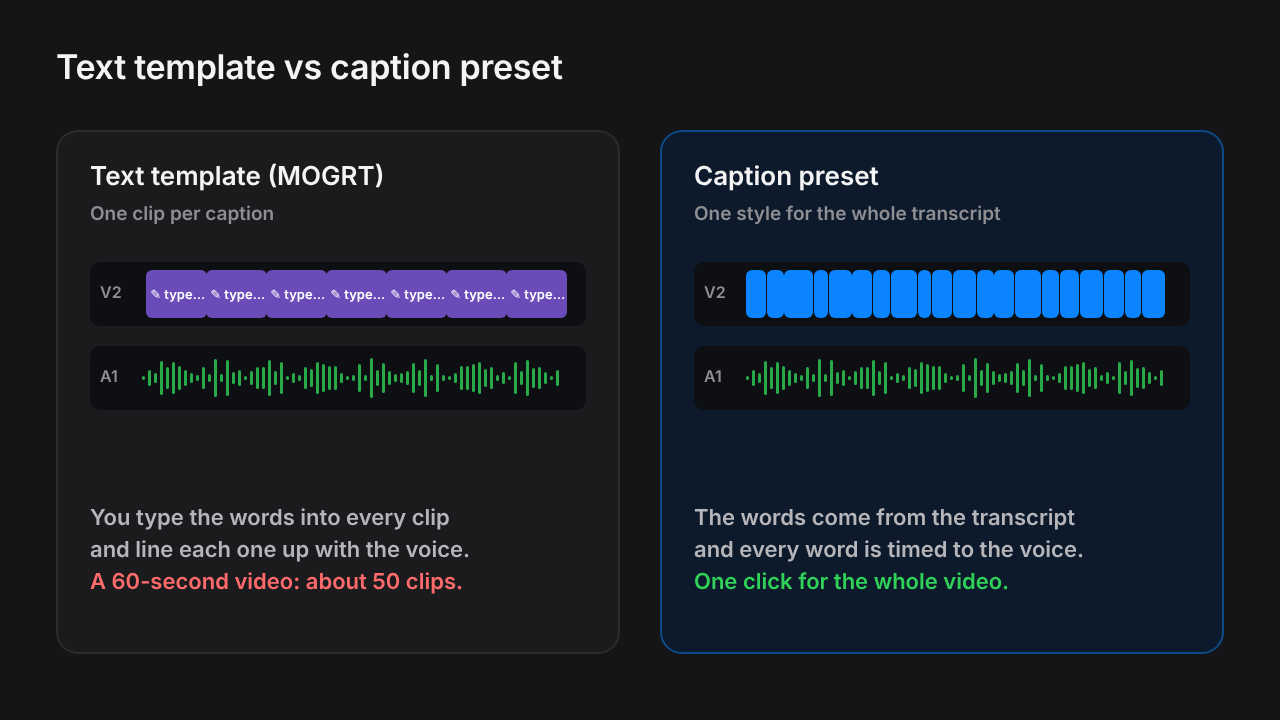
A MOGRT (Motion Graphics Template) is a single animated text clip. You download it, drag it onto your timeline and type your words in.
That's perfect for a title or a lower third. For captions it's slow: a 60-second video needs about 50 of them, each typed and lined up with the voice.
2. Premiere Track Styles
Premiere Pro can save a caption look as a Track Style. It's free and applies to the whole caption track at once.
The catch: Track Styles are static. There's no highlight on the spoken word and no animation.
3. Caption presets in a plugin
A caption plugin transcribes your clip and applies a preset to every word. The words, timing, highlight and animation all come from one click.
This is the fastest way to get animated captions, and it's what Captions Gen does.
Side by side
| MOGRT | Track Style | Plugin preset | |
|---|---|---|---|
| Words typed for you | No | Yes | Yes |
| Timed to the voice | No | Per line | Per word |
| Spoken word highlight | No | No | Yes |
| Animation | Yes | No | Yes |
| Best for | Titles | Plain subtitles | Social captions |
The 18 free presets
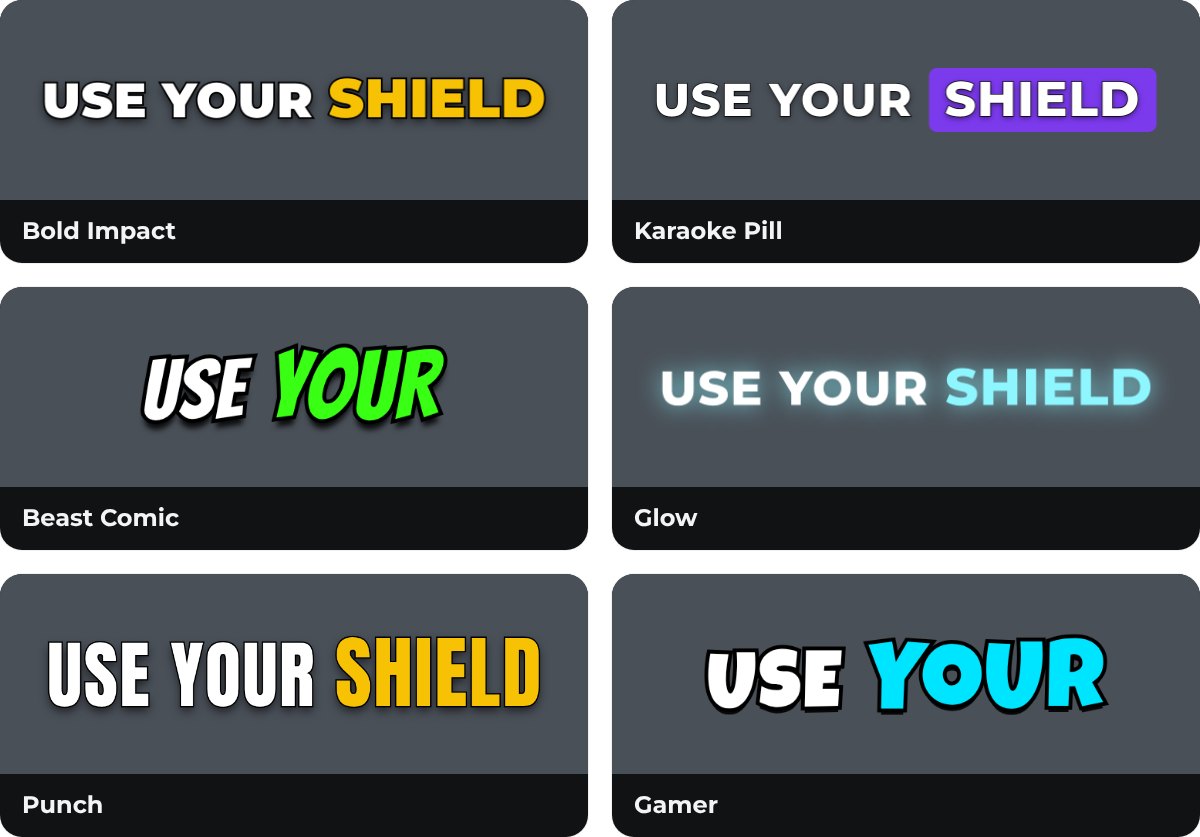
Captions Gen comes with 18 presets, grouped by the kind of video they suit.
Trend looks
| Preset | Look | Good for |
|---|---|---|
| Bold Impact | Heavy caps, yellow spoken word | Business, podcasts (Hormozi style) |
| Beast Comic | Comic font, green word, bounce | Challenges, vlogs (MrBeast style) |
| Karaoke Pill | A rounded box slides behind the spoken word | Talking heads, tutorials |
| Karaoke | Two outlined lines, the word turns green | Interviews, longer sentences |
| Punch | Tall, narrow caps, yellow word | Motivation, sports |
| Gamer | Chunky font, cyan word, bounce | Gaming, reactions |
| Glow | Light caps with a soft cyan glow | Music, night shots, tech |

Clean looks
| Preset | Look | Good for |
|---|---|---|
| Podcast | Sentence case, yellow word | Podcast clips |
| Minimal | Lowercase grey, the word turns white | Calm, aesthetic edits |
| Subtitle Box | White text on a dark box | Busy backgrounds, long videos |
| Serif Story | Lowercase serif | Storytelling, documentaries |
| Clean Fade, Clean, Plain | Simple text, soft or no animation | Corporate, education |
Motion looks
| Preset | Look | Good for |
|---|---|---|
| Typewriter | Text types on | Quotes, reveals |
| Spring | Words spring into place | Upbeat edits |
| Rise | Words rise in, like a lyric video | Music, voice-overs |
| Smooth | A soft slide | Vlogs, travel |
Tip: The installer adds the free fonts these presets use (Montserrat, Anton, Bangers, Luckiest Guy, Inter and DM Serif Display), so your captions match the preview.
How to use them
- Download Captions Gen and run the installer. It needs Windows 10 or 11 and Premiere Pro 25.0 or newer.
- Open Premiere Pro and go to Window > UXP Plugins > Captions Gen.
- Select the clip with the voice in your timeline.
- Tap a preset on the Presets tab. The big preview plays it.
- Press Generate.
Your captions appear on the track above your clip, timed word by word.
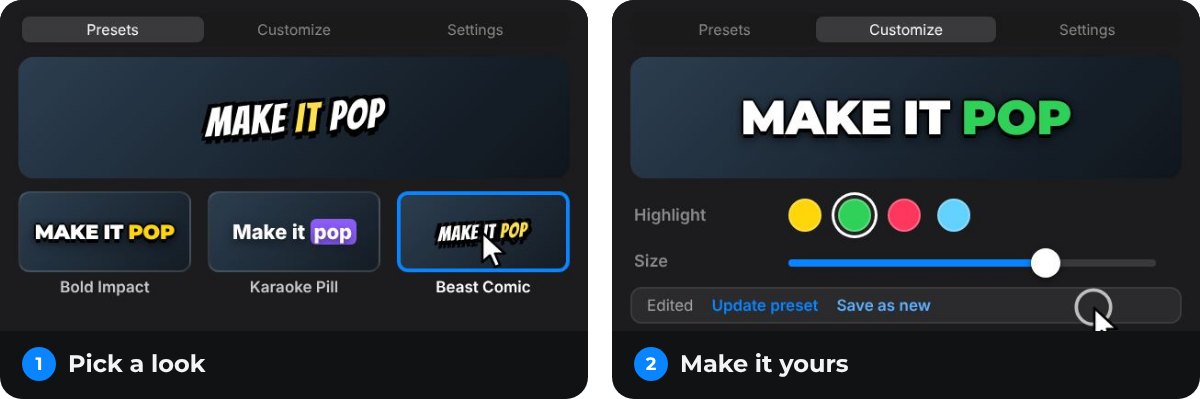
Changed your mind about the look? Pick another preset and click Apply style to placed captions. The captions restyle without transcribing again.
Make your own template
Most editors build one style for their channel and use it on every video. Here's how:
- Pick the preset that's closest to what you want.
- Open Customize and change the font, colors, size, outline, shadow or animation.
- Click Save as new and give it a name.
- Star it. The panel now opens on your preset every time.
Share it with your team
Open a preset's ⋯ menu to export it as a small file. On another computer, click Import to add it.
It's the easy way to keep the same caption style across a channel, a team or a client's videos.
Questions people ask
Are there free caption templates for Premiere Pro?
Yes. Premiere's own Track Styles are free but static. Free MOGRT text templates work for titles but need typing for every caption. Captions Gen is a free plugin with 18 animated caption presets that apply to your whole transcript.
What is the difference between a MOGRT and a caption preset?
A MOGRT is one animated text clip that you fill in by hand. A caption preset is a style that gets applied to every word of a transcript at once, with the timing taken from the voice.
How do I save my own caption template in Premiere Pro?
In Premiere, style a caption and save it as a Track Style. In Captions Gen, change a preset on the Customize tab and click Save as new. You can export it as a file to share.
Do the templates work in other languages?
Yes. Captions Gen transcribes with Whisper, which supports about 100 languages, and the presets work the same in any of them.
Is there a watermark or time limit?
No. Captions Gen is free now, with no time limit and no watermark.
Try animated captions on your own edit
Captions Gen creates word-synced animated graphics inside Premiere Pro, with local Whisper transcription, karaoke highlights, animation presets, and one-click restyling of placed captions. Native captions remain useful when you need subtitles or a separate caption file.
Windows 10/11 · Premiere Pro 25.0+. Free, with no time limit and no watermark.
Download free See the caption styles