Hormozi style captions in Premiere Pro
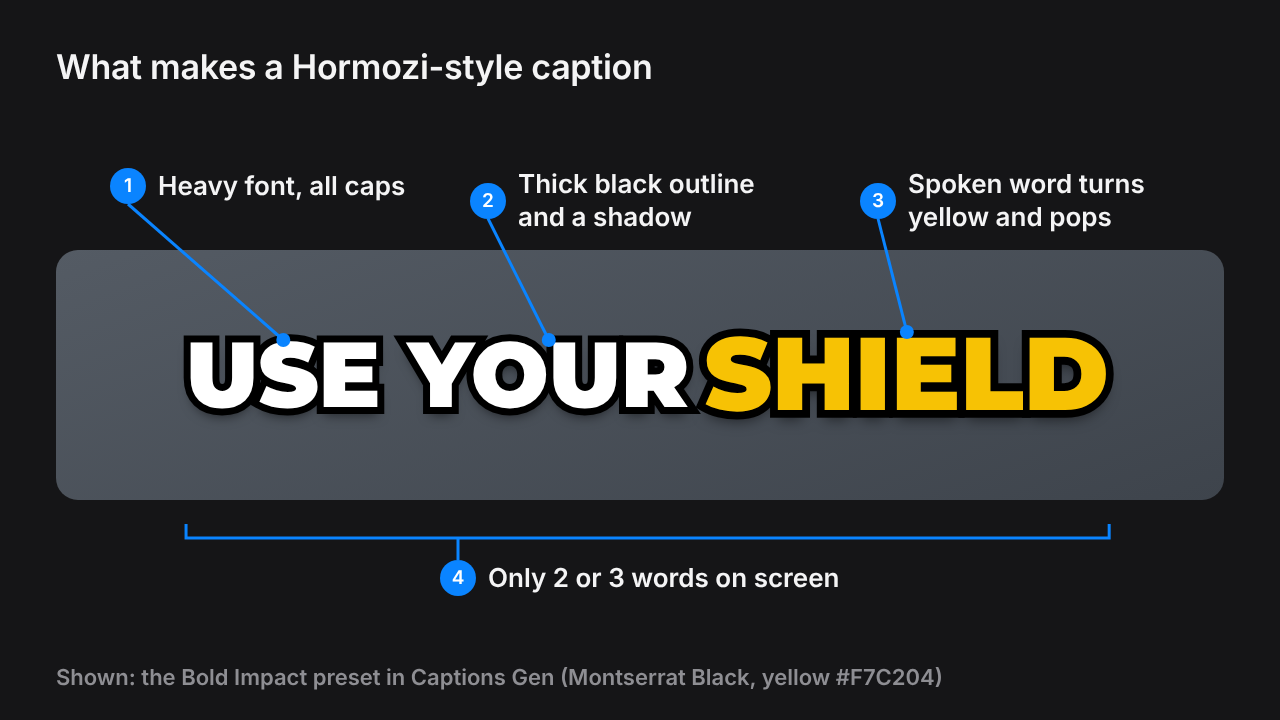
Hormozi style captions are the big, bold captions you see on almost every business and podcast short. Two or three words at a time, heavy white caps with a black outline, and the word being spoken turns yellow.
This guide shows you what makes the look, the exact settings, and two ways to make it in Premiere Pro: by hand, or free in one click.
In short
- Font: Montserrat Black or ExtraBold, all caps.
- Style: white text, thick black outline, a soft shadow.
- Highlight: the spoken word turns yellow (or green) and pops a little.
- Length: two or three words on screen at a time.
- Premiere can't highlight the spoken word by itself. A plugin like Captions Gen does it for free.
What Hormozi style captions are
The style is named after Alex Hormozi, whose short videos made it popular. Today it's one of the most copied caption looks on TikTok, Instagram Reels and YouTube Shorts.
It works because it's easy to read with the sound off. The eye only has to take in a couple of words, and the color shows exactly where the speaker is.
The font
The look needs a heavy, wide font in all caps. These free fonts all work:
- Montserrat Black: the most common pick. Wide, round and very bold.
- Montserrat ExtraBold: a little lighter if Black feels too heavy.
- Anton: tall and narrow. Fits more letters on a vertical frame.
All three are on Google Fonts. Install the font, then restart Premiere Pro so it shows up in the font list.
Tip: Captions Gen installs Montserrat and Anton for you, so the presets look the same on your computer as in the preview.
The exact settings
These are the settings of the Bold Impact preset in Captions Gen. Use them as a starting point if you build the look by hand.
| Setting | Value |
|---|---|
| Font | Montserrat Black |
| Case | ALL CAPS |
| Text color | White #FFFFFF |
| Outline | Black, thick |
| Shadow | Black, short distance, a little blur |
| Spoken word | Yellow #F7C204, a little bigger |
| Words on screen | 2 to 3 |
| Animation | A quick pop as each group appears |
Prefer green? Use #00E676. It's the green of the Karaoke preset.
How the word highlight works
The highlight is what makes this style hard to do by hand. Every word changes color at the exact moment it's spoken.
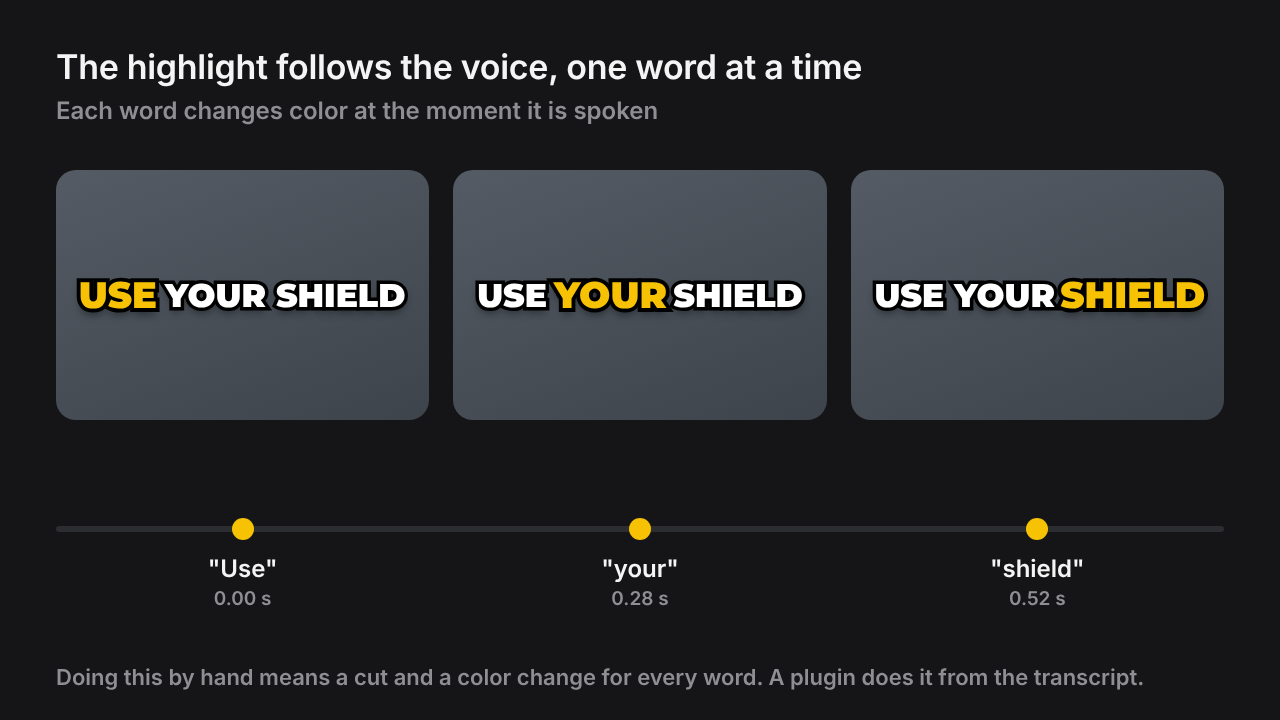
So a three-word caption is really three versions of the same caption, one after the other. A 60-second video has around 150 spoken words, so that's 150 color changes.
Method 1: by hand in Premiere Pro
This works with Premiere alone. It's fine for one short video, but slow if you post often.
- Transcribe. Open Window > Text, then click Transcribe sequence.
- Create short captions. Click Create captions and set a low maximum length so you get two or three words per caption.
- Style the track. Select the captions and set the font, caps, white fill, black stroke and shadow from the table above. Save it as a Track Style.
- Turn captions into graphics. Right-click the captions and choose Upgrade Caption to Graphic.
- Color each word. In each graphic, make the spoken word yellow. Cut the clip where the next word starts and move the color along.
- Add the pop. Keyframe the scale from about 100% to 110% and back over a few frames.
Note: Steps 5 and 6 are the slow part: a few hundred cuts and color changes for one minute of video. A new take means doing them again.
Method 2: free with Captions Gen
Captions Gen is a free plugin that does all six steps for you. It transcribes on your computer and places word-timed captions on your timeline.
- Download Captions Gen and run the installer. It needs Windows 10 or 11 and Premiere Pro 25.0 or newer.
- Open Premiere Pro and go to Window > UXP Plugins > Captions Gen.
- Select the clip with the voice in your timeline.
Then make the captions:
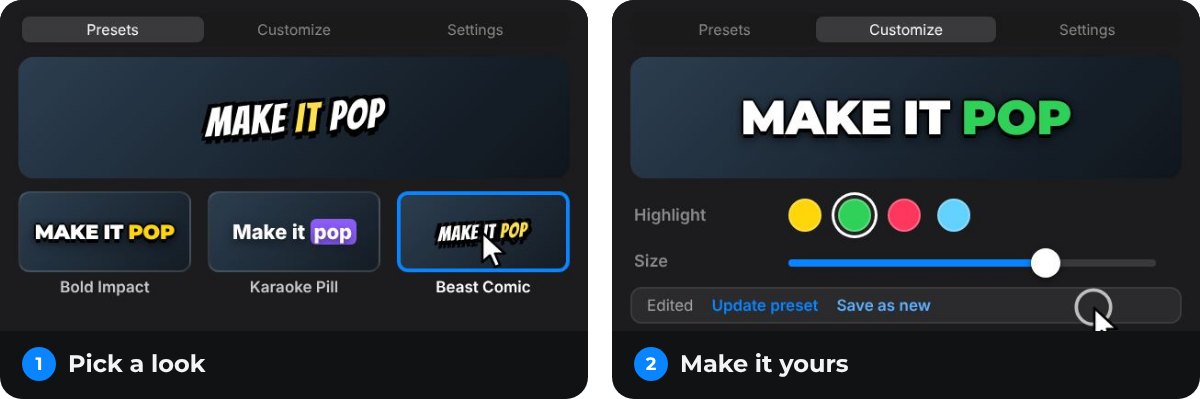
- On the Presets tab, tap Bold Impact. The preview plays the look.
- Press Generate.
That's it. Each word gets its own timing and color, as editable graphics on the track above your clip.
Make it your own
Open the Customize tab to change the look. The changes show in the preview right away.
- Highlight color: switch yellow to green, red or blue.
- Max words: how many words show at once. Two or three is the classic look.
- Text size and Highlight size: how big the text is and how much the spoken word grows.
- Position from top: move the captions up or down.
- Animation: how each group comes in, such as Pop or Bounce.
Happy with it? Click Save as new and star it. The panel opens on your starred preset next time, so every video gets the same look.
A taller version
The Punch preset is the same idea in Anton, a tall and narrow font. It fits longer words on a vertical frame.

Where to place them
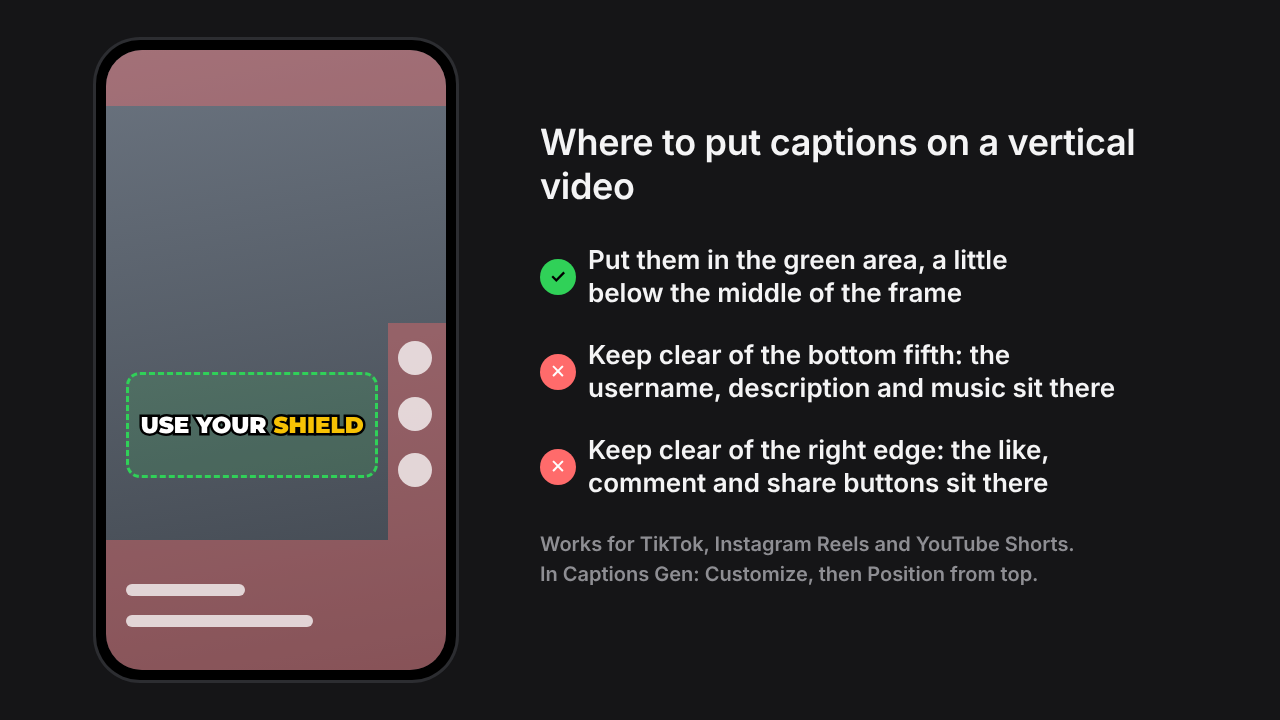
On vertical video, the app's buttons cover parts of the frame. Put your captions a little below the middle, away from the bottom and the right edge.
Common mistakes
- Too many words. The look falls apart as a full sentence. Keep it to three words or fewer.
- Two highlight colors. Pick yellow or green for the whole video. Switching looks like a mistake.
- A thin outline. Over a bright shot the white text disappears. Keep the outline thick.
- Typos in names. Check the transcript before you style anything. Captions Gen can show you the transcript first: turn on Check transcript before generating.
"Hormozi style" is the name editors use for this look. Captions Gen isn't affiliated with Alex Hormozi; the preset is named after what it looks like.
Questions people ask
What font is used for Hormozi captions?
Editors usually recreate the look with Montserrat Black or Montserrat ExtraBold in all caps. Both are free Google Fonts. Anton is a good choice if you want taller, narrower letters.
Can Premiere Pro make Hormozi captions without a plugin?
Partly. Premiere can transcribe and style a caption track, but it can't color the spoken word. For that you upgrade the captions to graphics and change each word by hand, which takes a long time.
Is there a free Hormozi captions preset for Premiere Pro?
Yes. Captions Gen is a free plugin for Premiere Pro on Windows. Its Bold Impact preset gives you heavy caps with the spoken word in yellow, and Punch gives a taller version.
Can I change the yellow to green?
Yes. In Captions Gen, open the Customize tab and pick a different highlight color. Save it as your own preset so every video uses it.
Can I still edit the captions after generating them?
Yes. Captions Gen places normal graphic clips on your timeline. You can fix a word, move a clip or delete one like any other graphic.
Does it work on Mac or in CapCut?
Captions Gen is Windows only for now and works inside Premiere Pro. CapCut has its own caption styles, so you don't need a plugin there.
Try animated captions on your own edit
Captions Gen creates word-synced animated graphics inside Premiere Pro, with local Whisper transcription, karaoke highlights, animation presets, and one-click restyling of placed captions. Native captions remain useful when you need subtitles or a separate caption file.
Windows 10/11 · Premiere Pro 25.0+. Free, with no time limit and no watermark.
Download free See the caption styles