MrBeast style captions in Premiere Pro
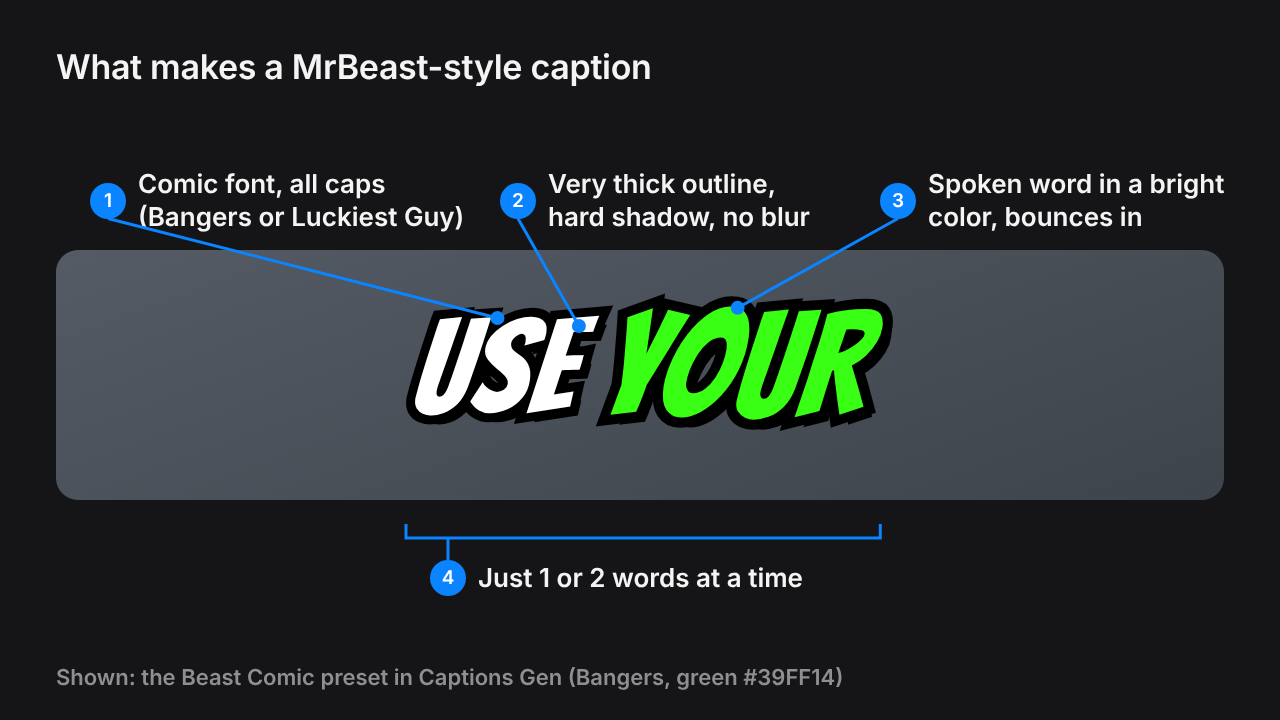
MrBeast style captions are loud, fun and hard to miss. A comic font, one or two words at a time, a very thick outline, and the spoken word in a bright color that bounces in.
This guide covers the font, the settings, the bounce, and how to make the look in Premiere Pro: by hand, or free in one click.
In short
- Font: a comic font like Bangers or Luckiest Guy, all caps.
- Style: a very thick black outline and a hard shadow with no blur.
- Highlight: the spoken word in neon green, yellow or cyan.
- Motion: each word bounces in, growing past full size and settling.
- Free option: the Beast Comic preset in Captions Gen.
What MrBeast style captions are
The look comes from the high-energy style of MrBeast's videos and the shorts cut from them. It feels like a comic book: big letters, bold colors and a lot of movement.
It's built to grab attention in the first seconds of a short, which is why gaming, challenge and reaction channels use it a lot.
The font
You need a bold, slightly playful font. These two free fonts are the usual picks:
- Bangers: narrow comic letters with a slant. Closest to the classic look.
- Luckiest Guy: round and chunky. Feels more like a game.
Both are on Google Fonts. Restart Premiere Pro after you install them.
Tip: The Captions Gen installer adds Bangers and Luckiest Guy for you.
The exact settings
These are the settings of the Beast Comic preset in Captions Gen.
| Setting | Value |
|---|---|
| Font | Bangers |
| Case | ALL CAPS |
| Text color | White #FFFFFF |
| Outline | Black, very thick |
| Shadow | Black, hard edge, almost no blur |
| Spoken word | Neon green #39FF14, noticeably bigger |
| Words on screen | 1 to 2 |
| Animation | A bouncy pop on every word |
Other colors that fit the look: yellow #F7C204 and cyan #00E5FF.
The bounce
The bounce is what makes the captions feel alive. Each word starts small, grows a little past full size, then settles.
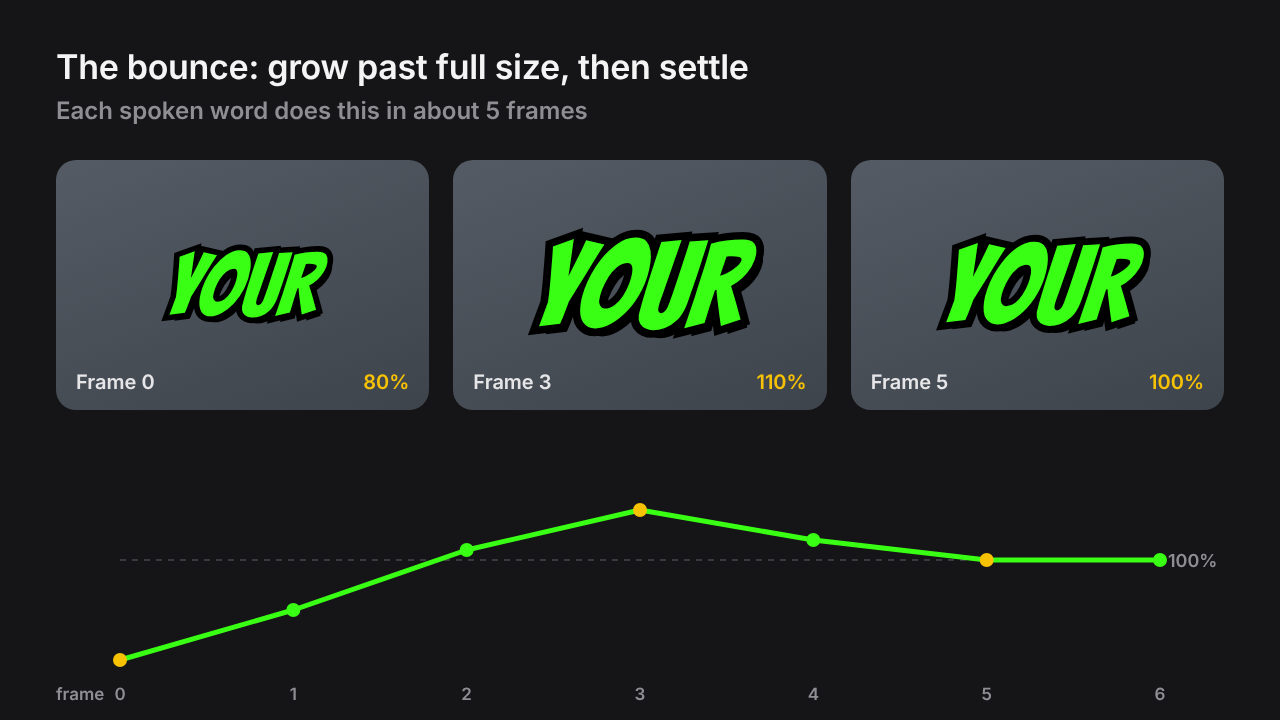
That small overshoot is the trick. Without it, the word just grows and looks stiff.
Method 1: by hand in Premiere Pro
- Install the font. Get Bangers or Luckiest Guy and restart Premiere.
- Transcribe and create captions. In Window > Text, transcribe the sequence and create captions with the shortest line length.
- Turn captions into graphics. Right-click them and choose Upgrade Caption to Graphic.
- Style one graphic. Comic font, all caps, thick black stroke, hard shadow. Save it as a Master Style and apply it to the rest.
- Add the bounce. For each word, keyframe Scale: 80% on the first frame, 110% on frame 3, 100% on frame 5.
- Color the spoken word. Make it green, and move the color along as the next word starts.
Note: This looks great but takes a long time. The bounce and color need setting for every word, and a 60-second video has around 150 of them.
Method 2: free with Captions Gen
Captions Gen is a free plugin that does the transcript, timing, color and bounce for you.
- Download Captions Gen and run the installer. It needs Windows 10 or 11 and Premiere Pro 25.0 or newer.
- Open Premiere Pro and go to Window > UXP Plugins > Captions Gen.
- Select the clip with the voice in your timeline.
Then make the captions:
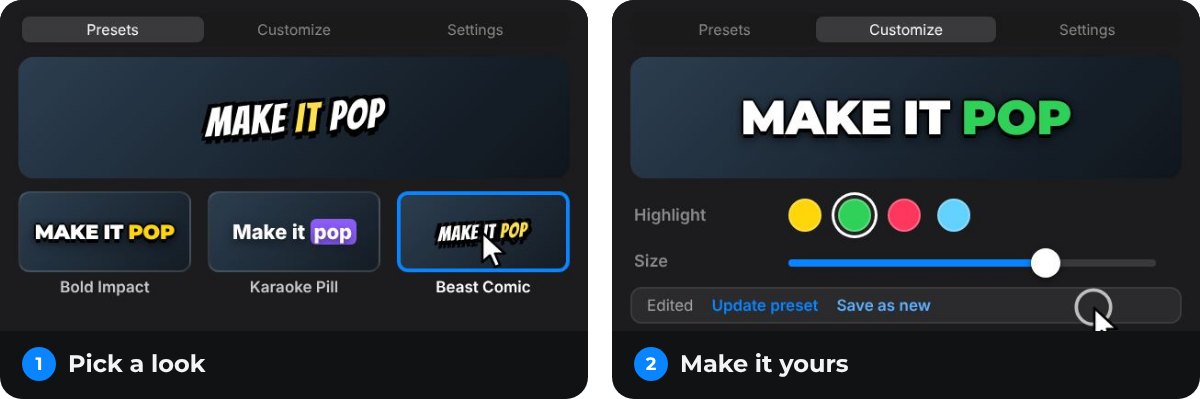
- On the Presets tab, tap Beast Comic.
- Press Generate.
Every word gets its own timing, color and bounce, as editable graphics on your timeline.
Make it your own
On the Customize tab you can:
- Change the highlight color.
- Set Max words to 1 for a punchier feel.
- Make the spoken word bigger with Highlight size.
- Move the captions with Position from top.
Save it as your own preset and star it, so it's ready for the next video.
Another option: Gamer
The Gamer preset uses Luckiest Guy with an even thicker outline and a cyan word. Great for gaming and reaction videos.

Tips for better results
- Give big words their own screen. Numbers, money and names hit harder alone.
- Go bigger in the hook. Raise the text size for the first three seconds, then bring it back down.
- Keep the outline thick. On a busy background a thick outline reads better than a box behind the text.
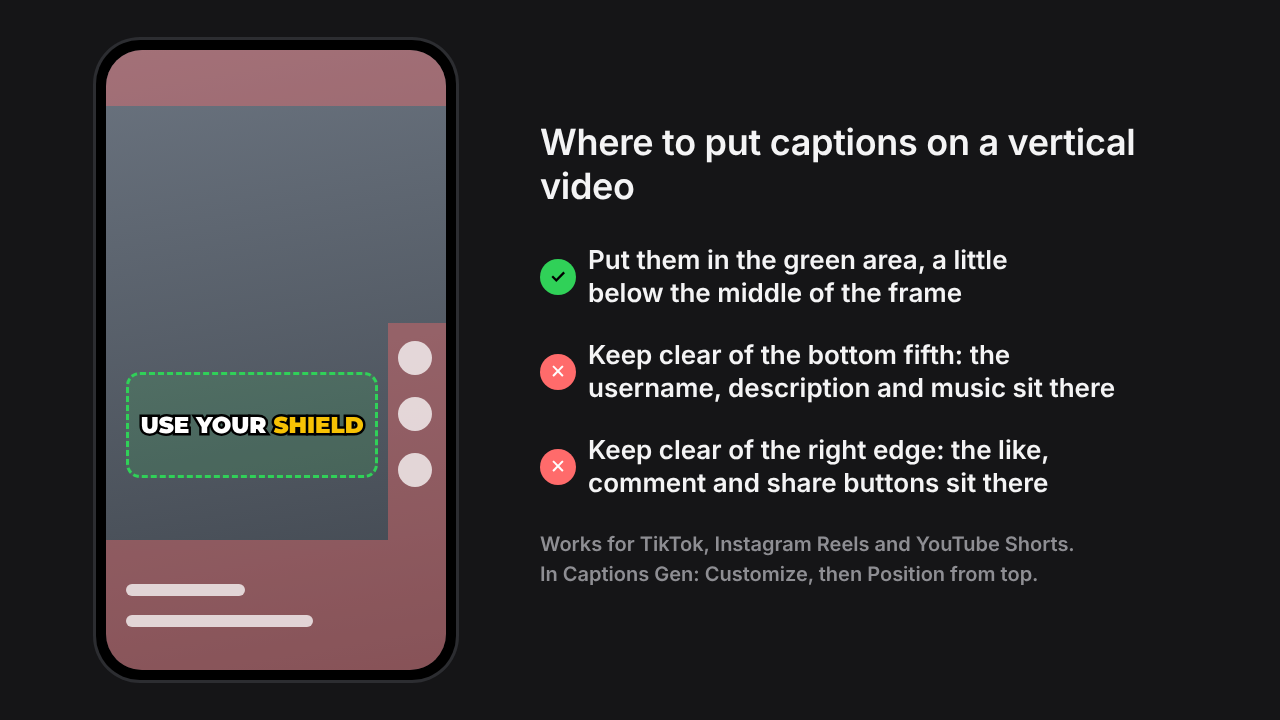
- Mind the buttons. On Shorts, Reels and TikTok, keep captions above the bottom fifth of the frame.
"MrBeast style" is the name editors use for this look. Captions Gen isn't affiliated with MrBeast; the preset is named after what it looks like.
Questions people ask
What font is used for MrBeast captions?
Editors usually recreate the look with a bold comic font such as Bangers or Luckiest Guy. Both are free on Google Fonts.
How do I make words bounce in Premiere Pro?
Keyframe the Scale of each word: about 80% on the first frame, about 110% two or three frames later, then 100%. Captions Gen does this for every word automatically.
Is there a free MrBeast captions preset for Premiere Pro?
Yes. Captions Gen is a free plugin for Premiere Pro on Windows. Its Beast Comic preset uses Bangers with a green bouncing word, and Gamer uses Luckiest Guy with a cyan word.
Should I use MrBeast style captions on long YouTube videos?
Use them for the big moments, like the hook, numbers and reveals. For a whole long video, a calmer style such as Podcast or Subtitle Box is easier to watch.
Does it work on Mac?
Captions Gen is Windows only for now. On a Mac you can still build the look by hand with the steps in this guide.
Try animated captions on your own edit
Captions Gen creates word-synced animated graphics inside Premiere Pro, with local Whisper transcription, karaoke highlights, animation presets, and one-click restyling of placed captions. Native captions remain useful when you need subtitles or a separate caption file.
Windows 10/11 · Premiere Pro 25.0+. Free, with no time limit and no watermark.
Download free See the caption styles